
Connect to TrueScale™ Server (beta)
TrueScale Server (beta)
Work on the same set with your team, on a server you run yourself. Included free with your licence.
How to
- Install the server on a PC in your office (see how the server installs).
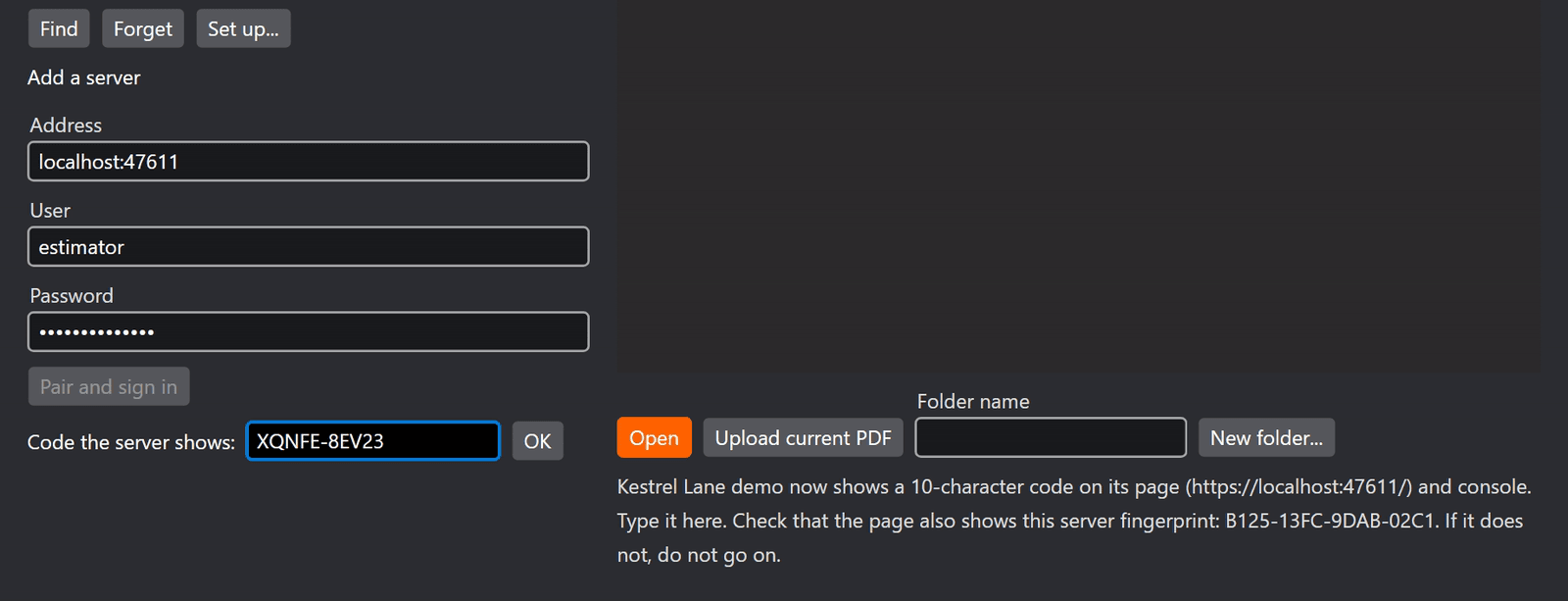
- In TrueScale choose File > TrueScale Server (beta) > Set up a server, pick the server found on your network (or type its address), then your user name and password, and choose Pair and sign in.
- Type the 10-character code the server shows on its page. Check that the fingerprint TrueScale shows is the same one the server shows before you go on.
- Open drawings with File > Open from TrueScale Server (beta)....
Good to know
- It's a beta: keep a backup of your projects. The server makes one with a click, and can make one every day.
- Everyone with an account sees every project on the server. Per-project permissions aren't built yet. Run a separate server for confidential work.
- File > TrueScale Server (beta) also has Check out, Check in, Undo check out, Version history..., Live session and Switch user....
- After ten wrong codes or passwords, pairing or sign-in waits 15 minutes. Ask your admin if you are locked out.
Known server issues, and what to do in the meantime, are on the known issues page.