
Scale and calibrate in TrueScale™
Set the scale
Every measurement keeps its own scale, so a sheet with plans at 1:100 and details at 1:20 still measures right.

4 min video: Set Scale, Calibrate, and the calibration check.
How to
- If the drawing states its scale, choose Tools > Measure > Set scale... and pick it (for example 1:100 at A1).
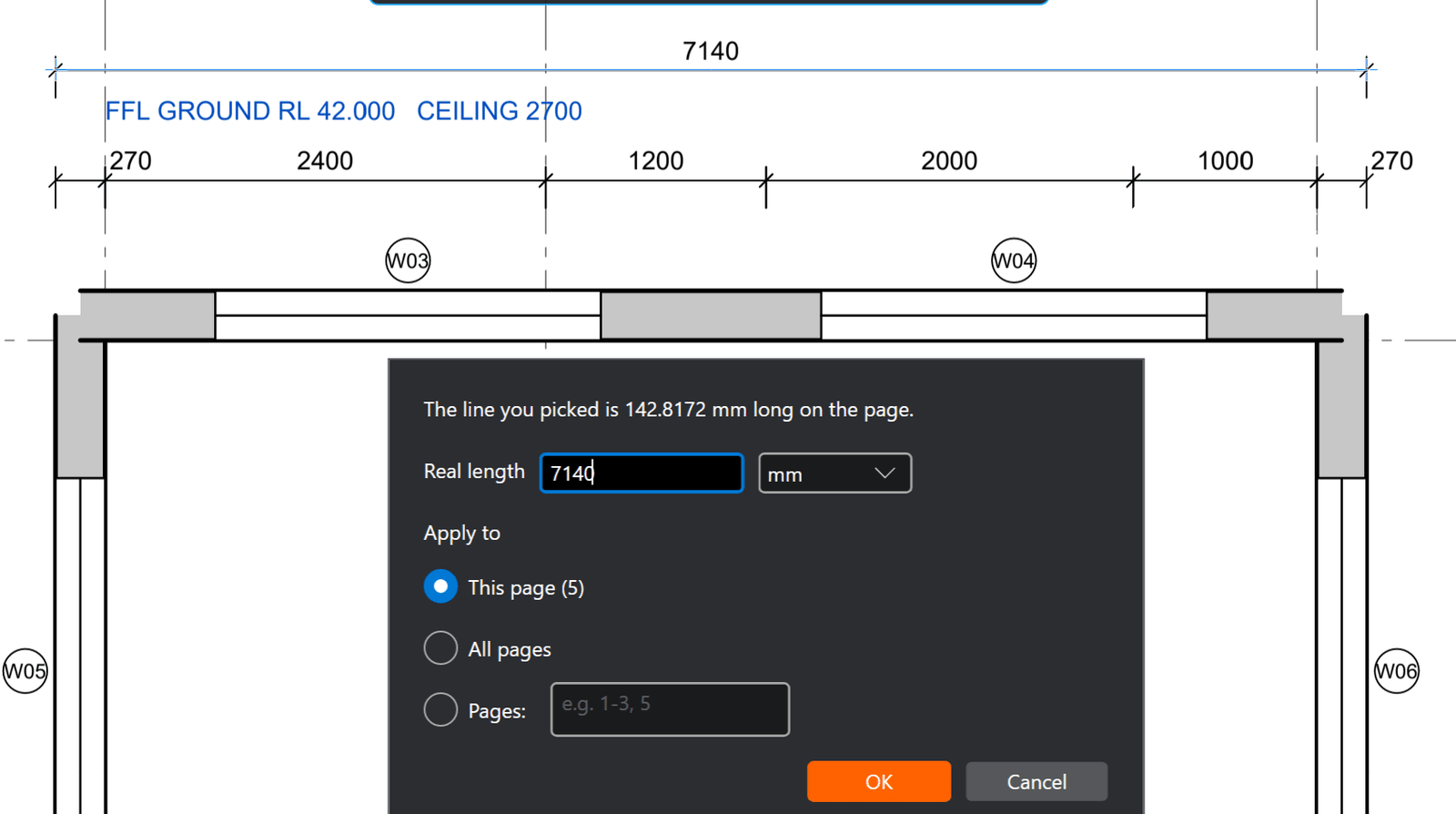
- To be sure, choose Tools > Measure > Calibrate..., click both ends of a dimension you know (a long one is best), type its length and choose the unit.
- Check it any time with Tools > Measure > Check calibration...: measure a known dimension again and compare.
Good to know
- The scale shows in the status bar.
- The magnifier and hairline help you land exactly on the line while calibrating.
- A sheet with more than one scale: add a viewport around each detail in the Measurements panel and give it its own scale.
- A drawing's own scale always wins: a file measured in feet stays in feet.